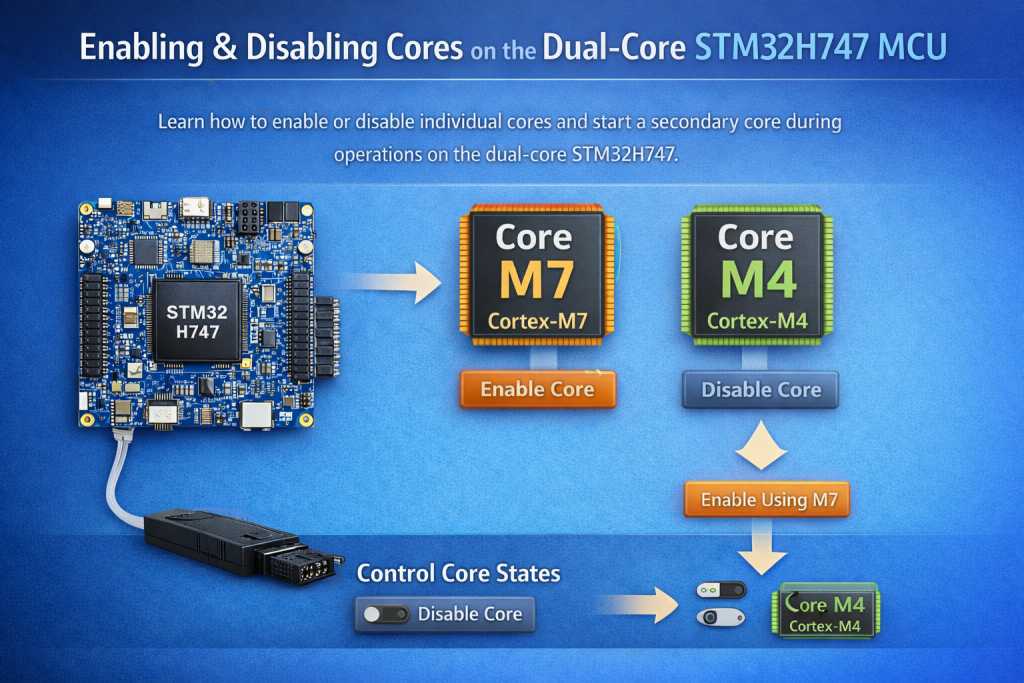
In this third part, we explain how to enable and disable individual cores on the STM32H747 and control their startup behavior. The section also covers how one core can release or start the other during runtime, enabling coordinated dual-core operation.
In this guide, we shall cover the following:
- How to disable a core.
- Configure the firmware to run single core.
- Enable the core by software.
1. How to Disable a Core:
To disable a core, you need to use STM32CubeProg application which will allow us to control some parameters of the STM32H747.
Open STM32CubeProg and connect to your debugger.
Once your debugger has been connected to the MCU, navigate to option bytes and then User Configuration as scroll to where it states BCM4 and BCM7 as follows:
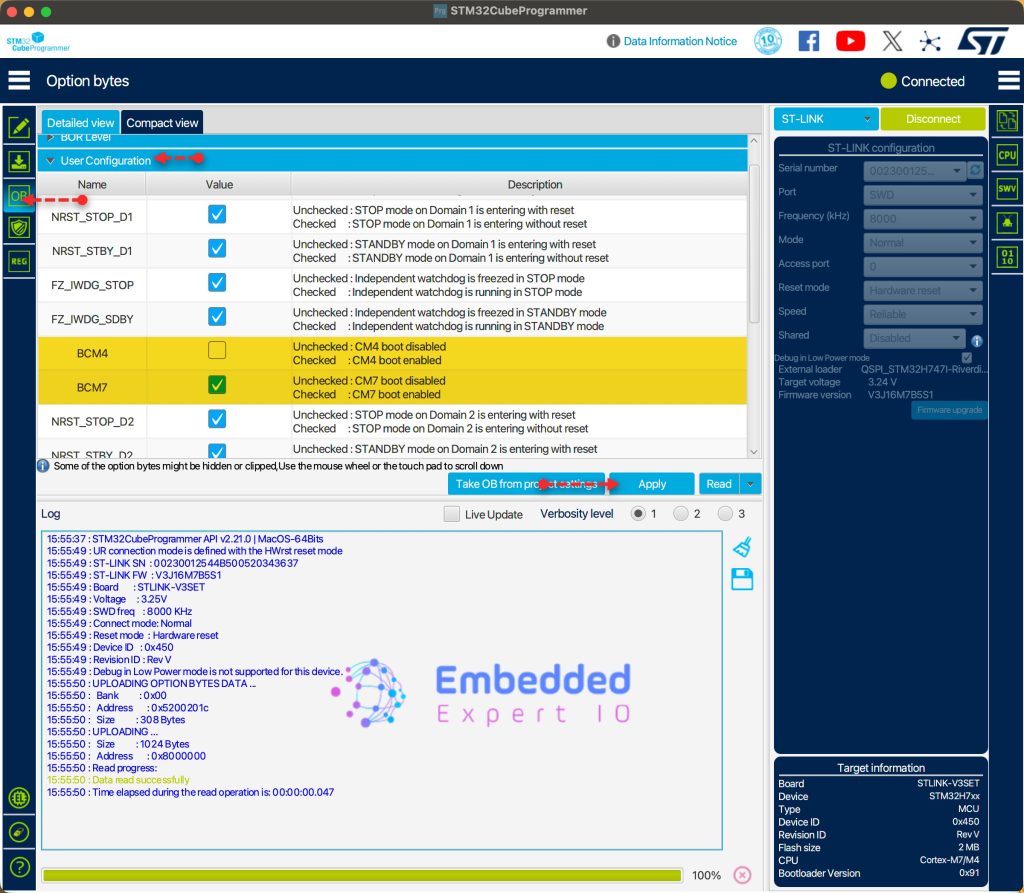
In this guide, the CM4 has been disabled by unchecking it and click on Apply.
This will disable core 2 which is the CM4.
Thats all for how to disable a core using STM32CubeProg.
2. Configure Firmware to Run Single Core:
Open the main.c for CM7 part of the project.
Comment the following line in main.c file:
#define DUAL_CORE_BOOT_SYNC_SEQUENCE
This will disable to wait for Core 2 to enter stop and running mode.
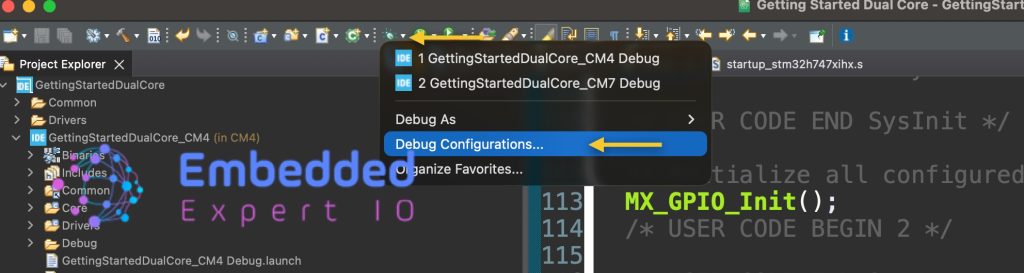
Save the project and launch a debugging session as follows:
From top toolbar, click on the down arrow near the debugging icon and select debug configuration as follows:
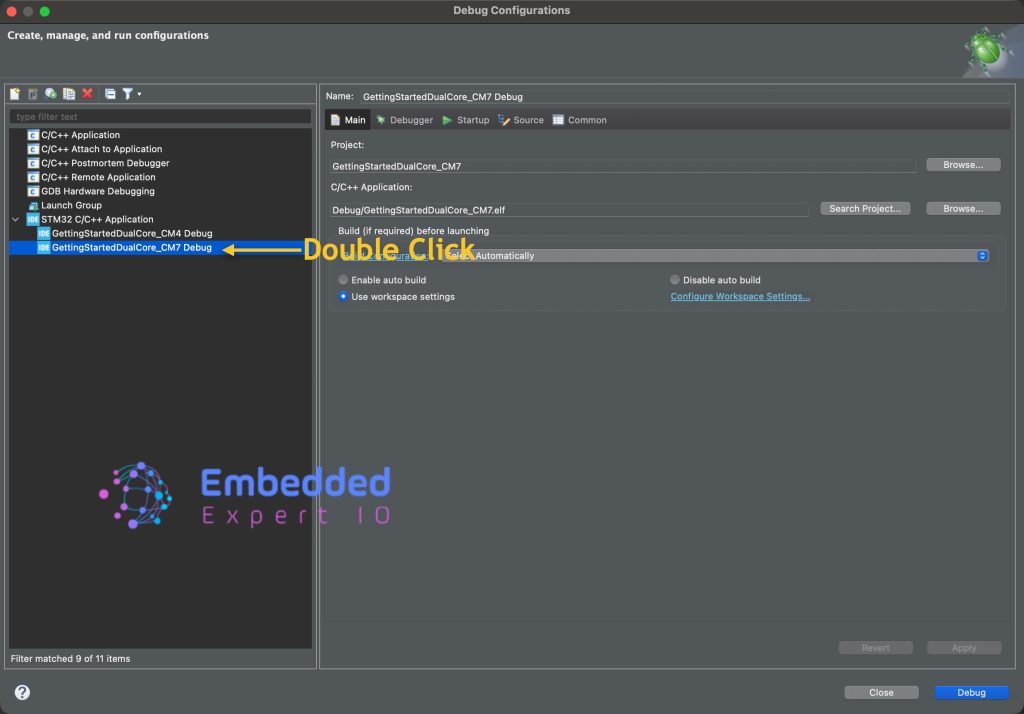
Next, from left side of the window, double click on CM7 part of the project as follows:
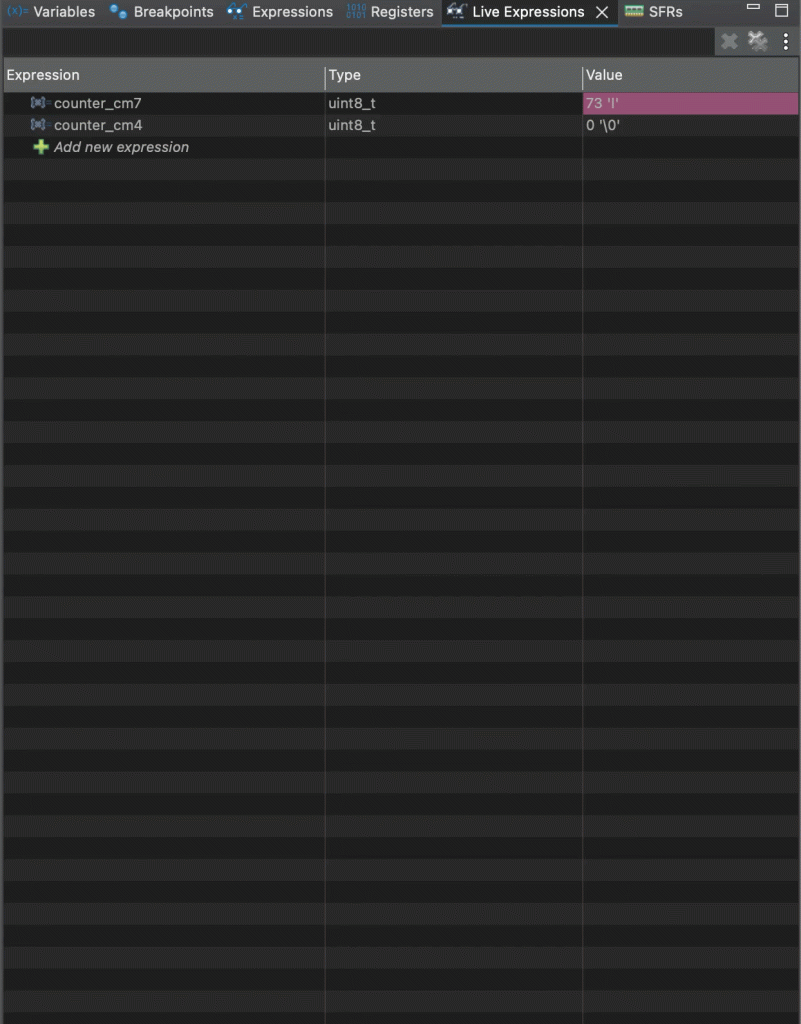
From the live expression, you will notice that only counter_cm7 is counting while counter_cm4 remains zero as follows:
By trying to launch CM4 debugging session, it will fail as follows:
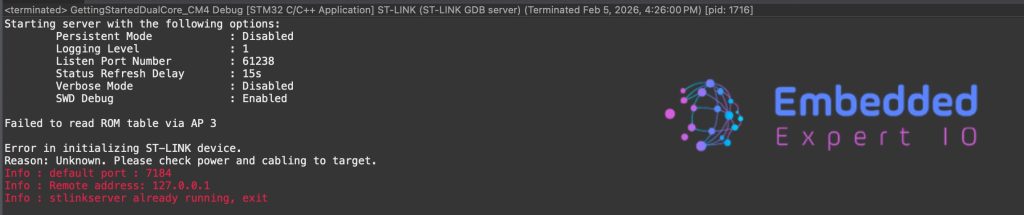
This error is due to CM4 core is disabled.
Thats all for this section.
3. Enabling the Core using Software:
From the reference manual of STM32H747, in RCC section:
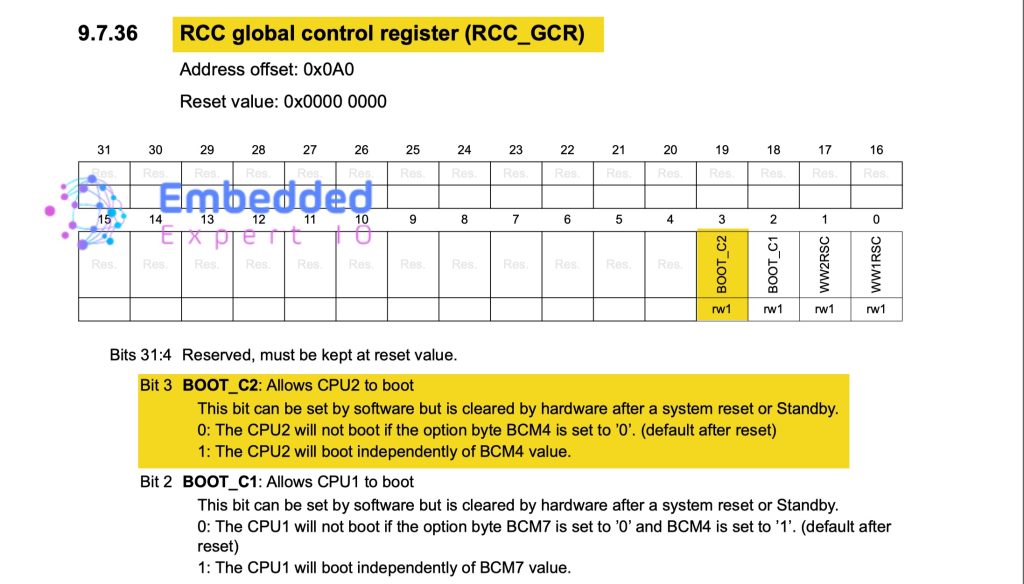
By setting bit 3 to 1 in CM7 firmware, we can boot CM4 CPU using software.
In user code begin 2 in main.c file of CM7 project:
RCC->GCR|=(1<<3);
This will launch CPU2 (CM4) on the fly.
Again launch debugging session for CM7 and once the counter starts counting, pause the debugging session and start CM4 debugging session as follows:
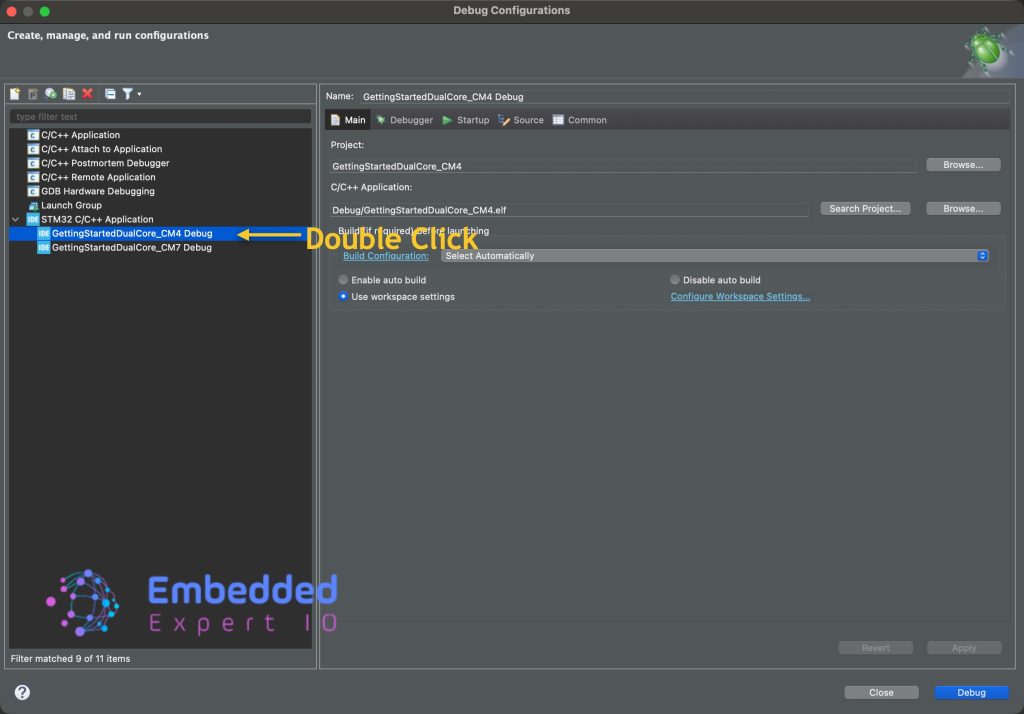
aunch another debugger session for the CM4 part by clicking on down arrow and select debug configuration as follows:
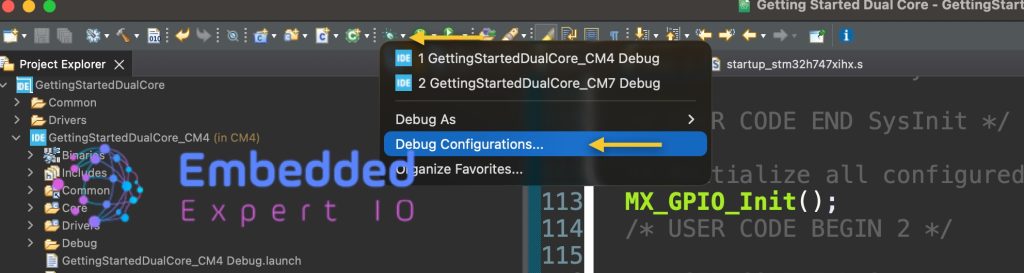
Launch CM4 debug session:
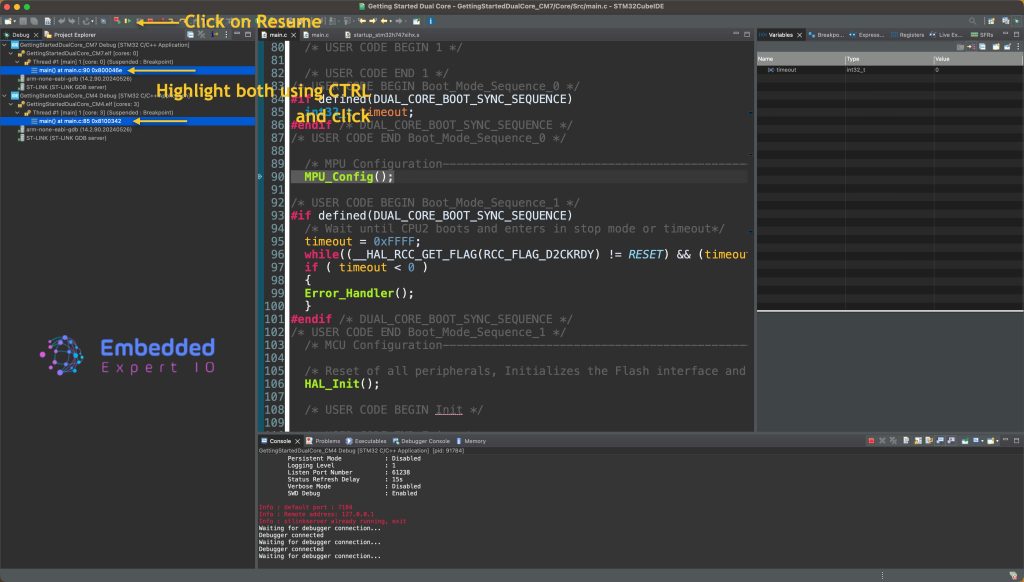
Next, highlight both project and click on resume as follows:
Resume the session, you will notice now both are counting as follows:
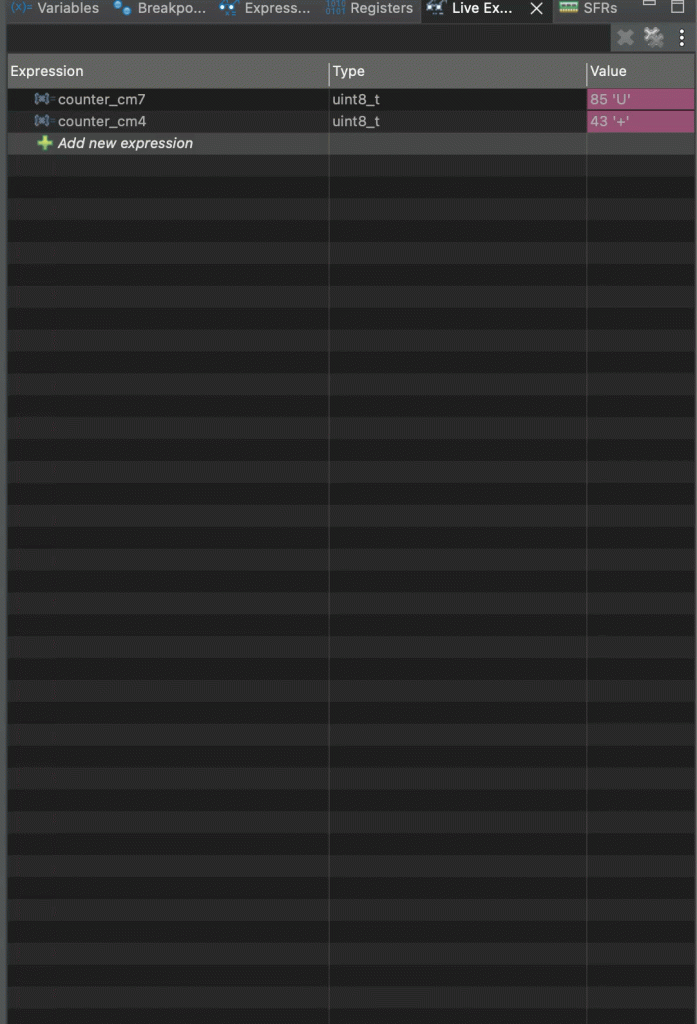
We have successfully ran the second core programmatically.
Thats all.
Happy coding 😉

Add Comment