
In this guide, the installation of the IDE is presented.
In this guide, we shall cover the following:
- Installing the IDE
- Constructing the correct project tree
Note: This guide for STM32F411. However, the method will apply to most of STM32 families.
1. Installing the IDE:
Head to main STM32CubeIDE website from here.
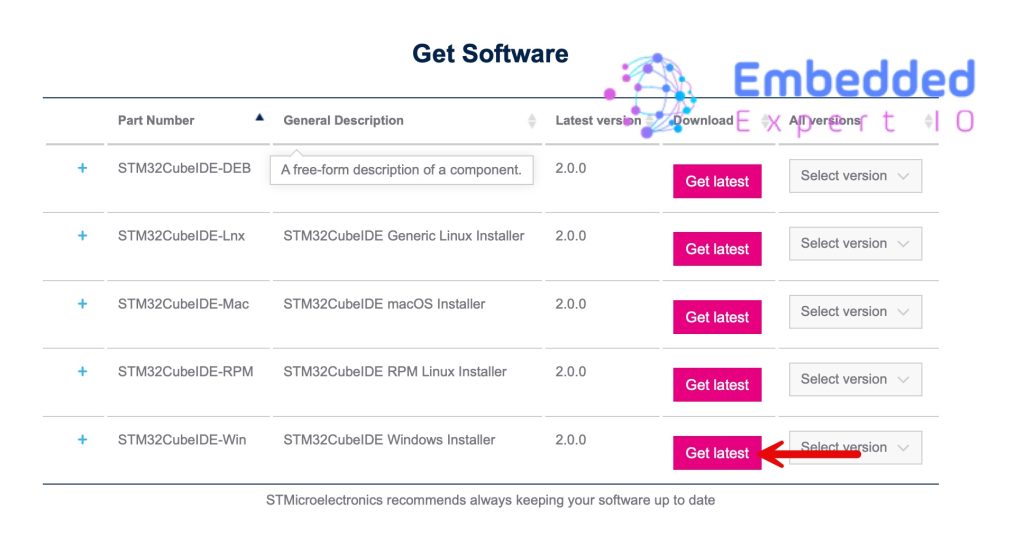
Select latest version for your OS. This guide shall use windows version.
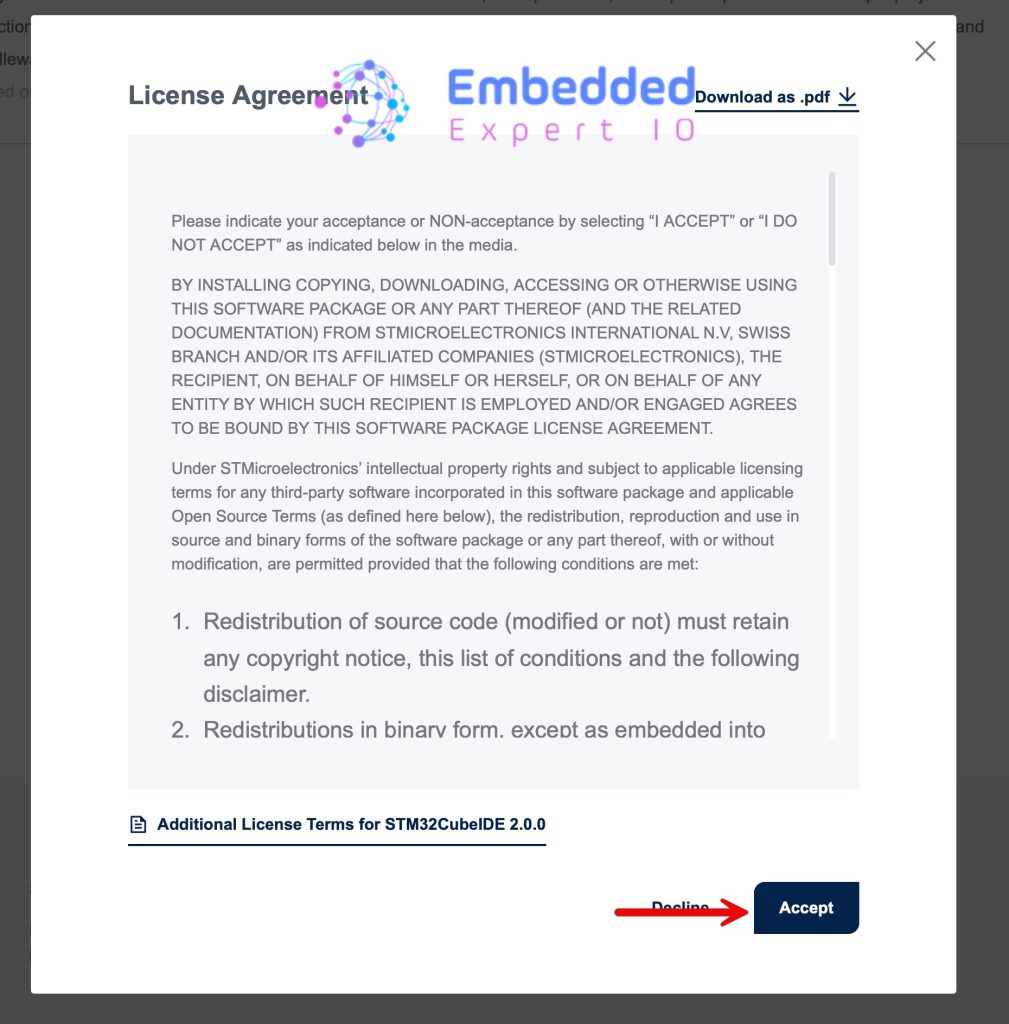
Agree to terms:
Next, either log in or create a new account:
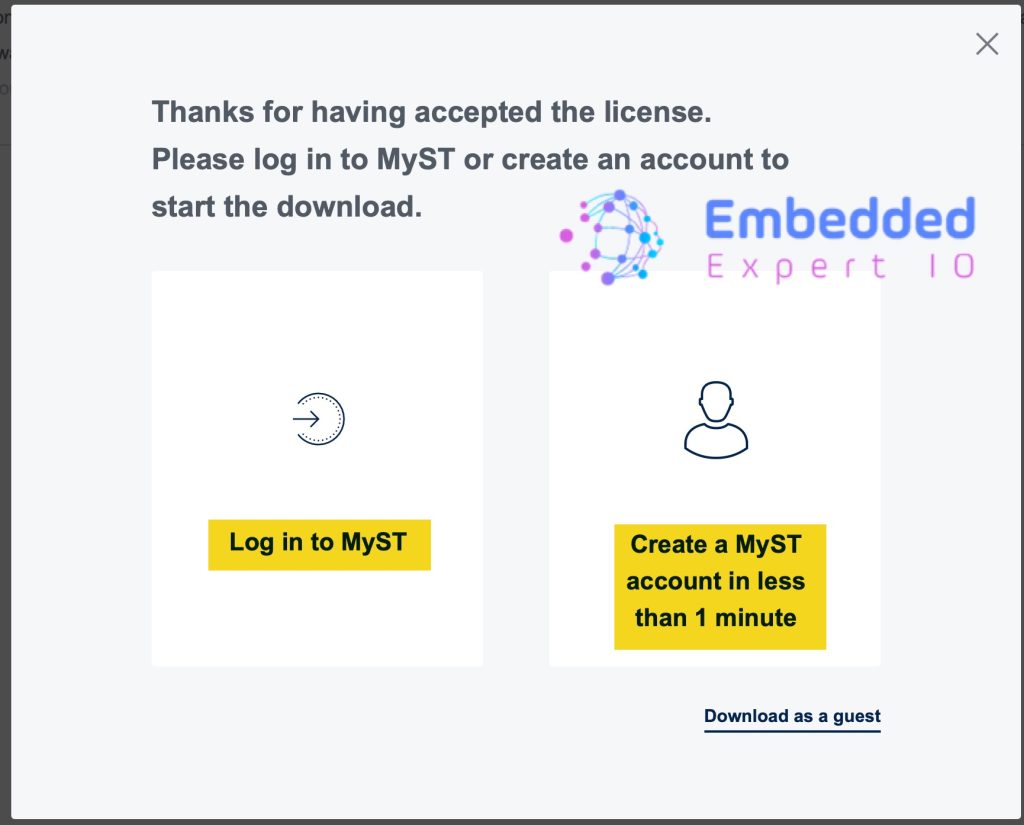
Once that done, download will start automatically.
Follow this video to setup STM32CubeIDE:
2. Construct the right project tree:
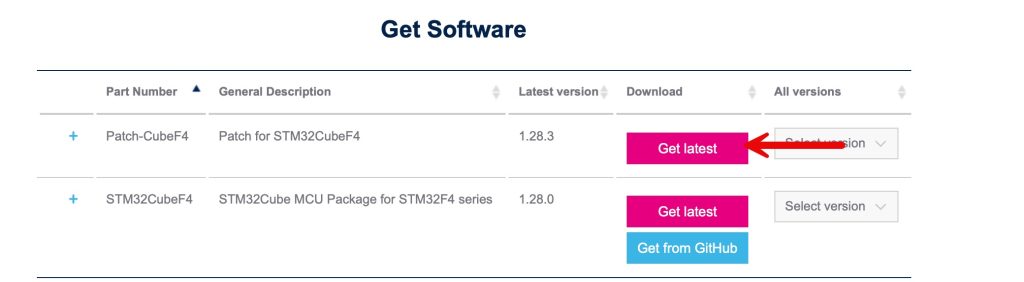
For constructing the right project tree, the header files can be downloaded from STM32CubeF4 from main website from here.
Download the latest version as follows:
Agree to terms:
Next, either log in or create a new account:
After downloading the firmware, extract it as following:
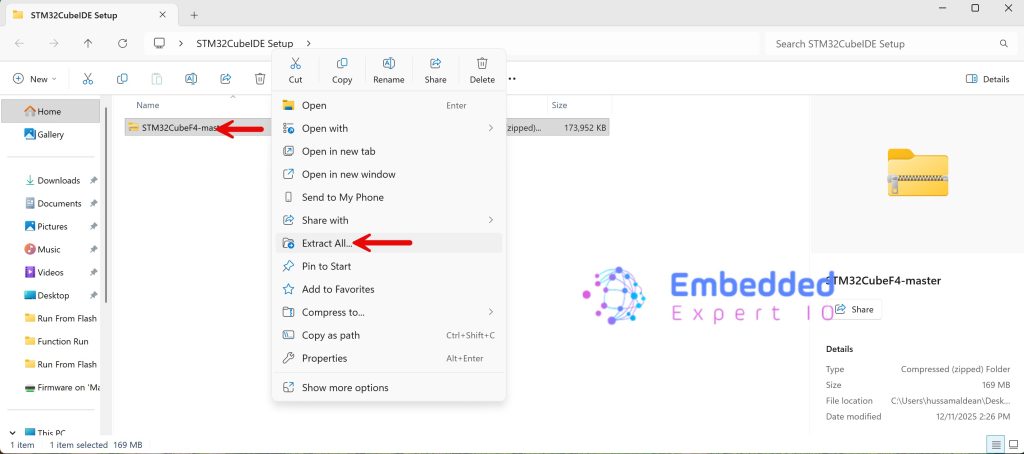
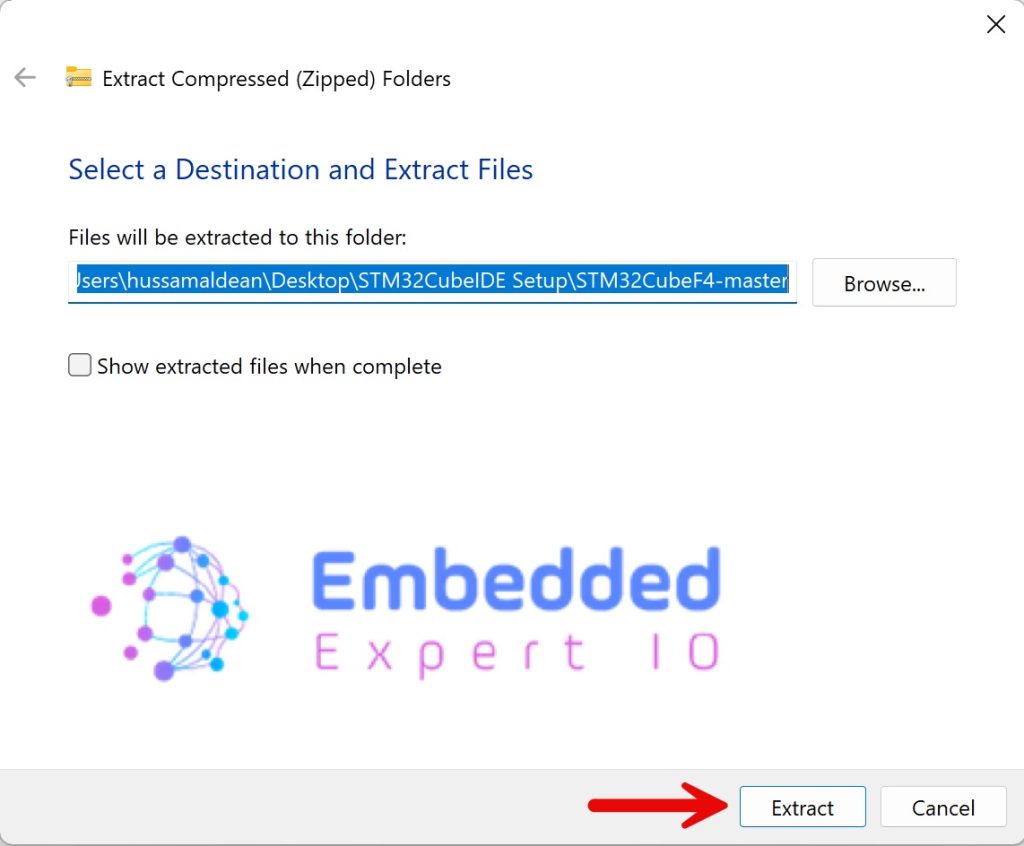
After clicking on extract here, this will pop-up:
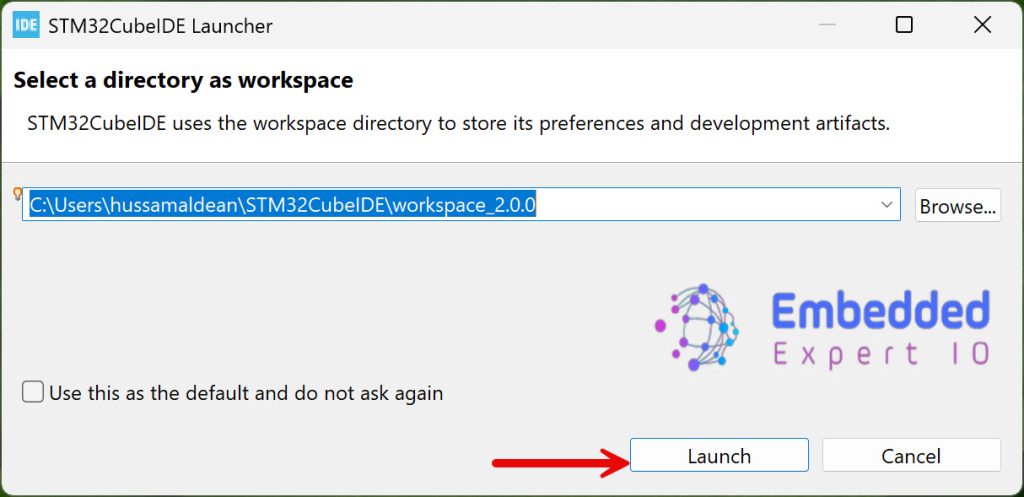
After extraction, open STM32CubeIDE and select your work space:
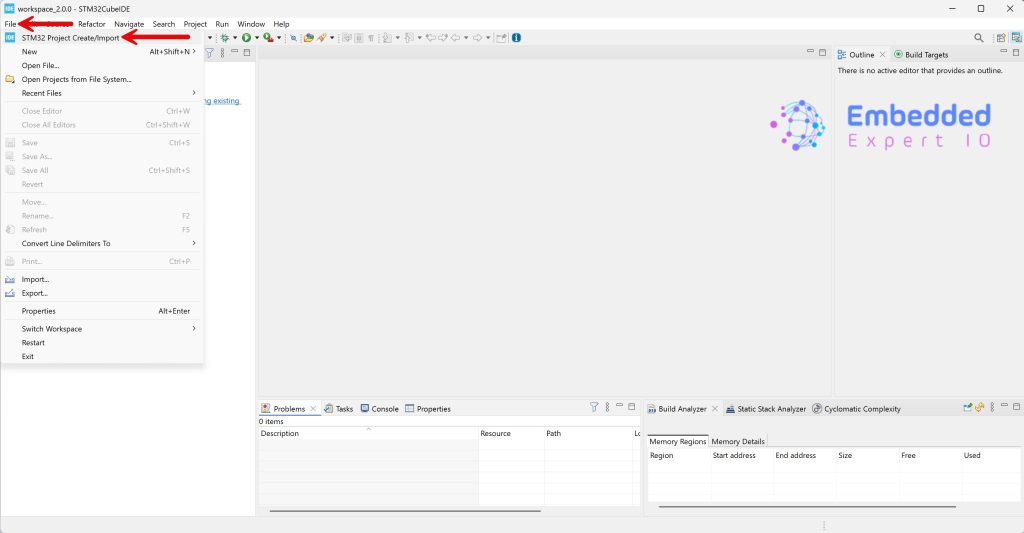
Next, create New Project by clicking on File then STM32Project Create/Import as follows:
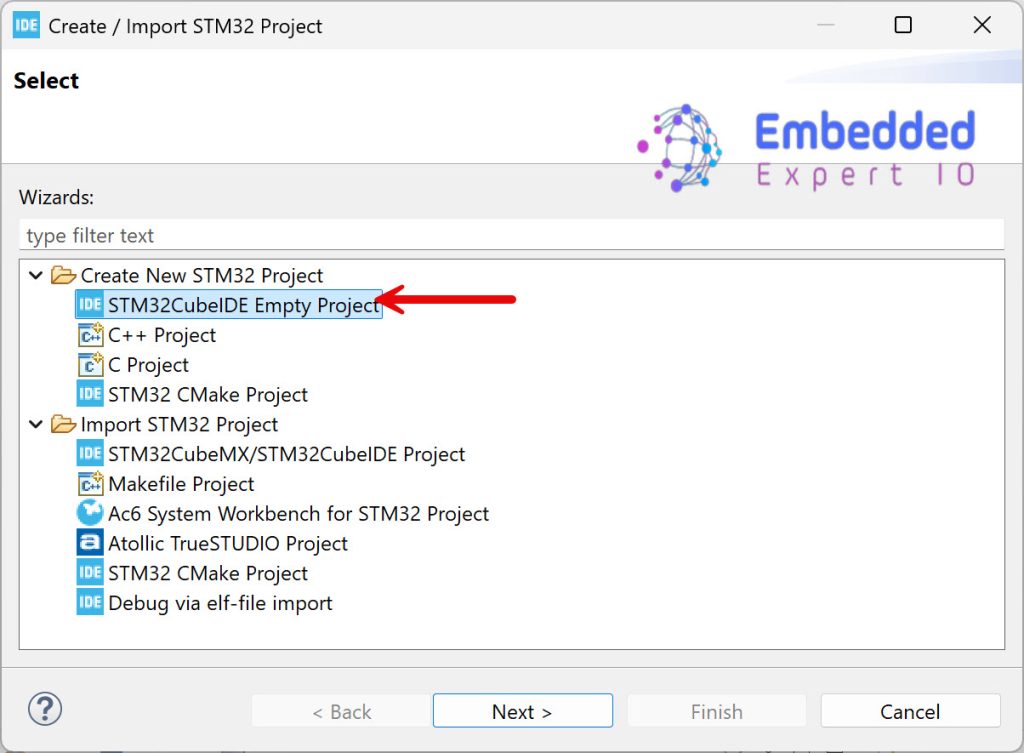
Select STM32CubeIDE Empty Project:
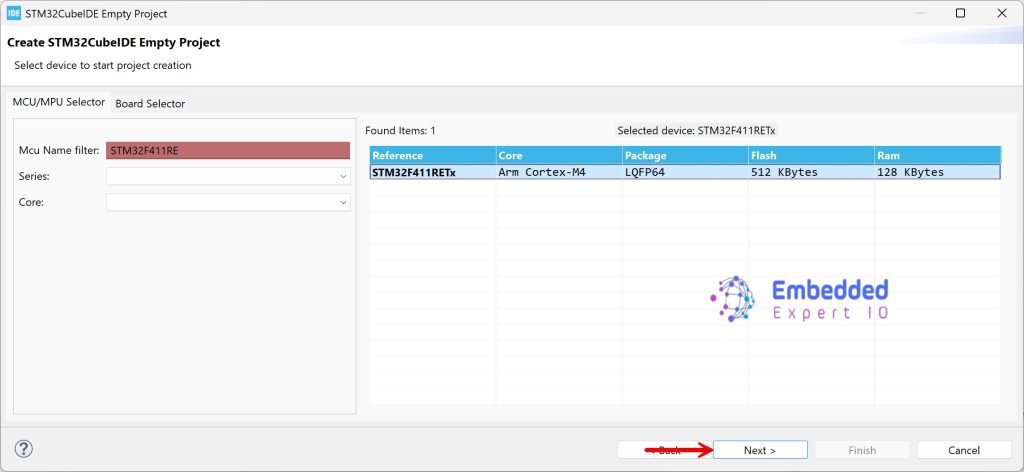
Select your STM32 chip (STM32F411RE in this case) and click on next:
Give the project a name and click on finish:
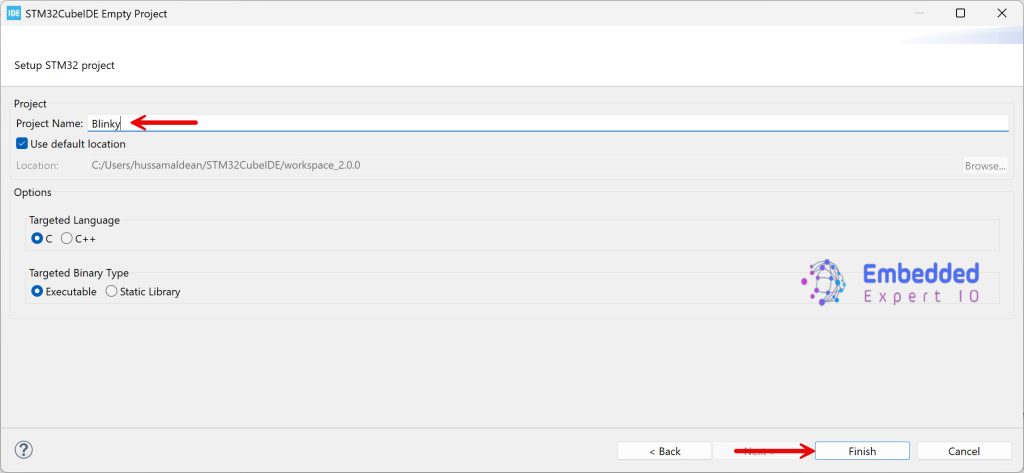
Then, the project shall be generated.
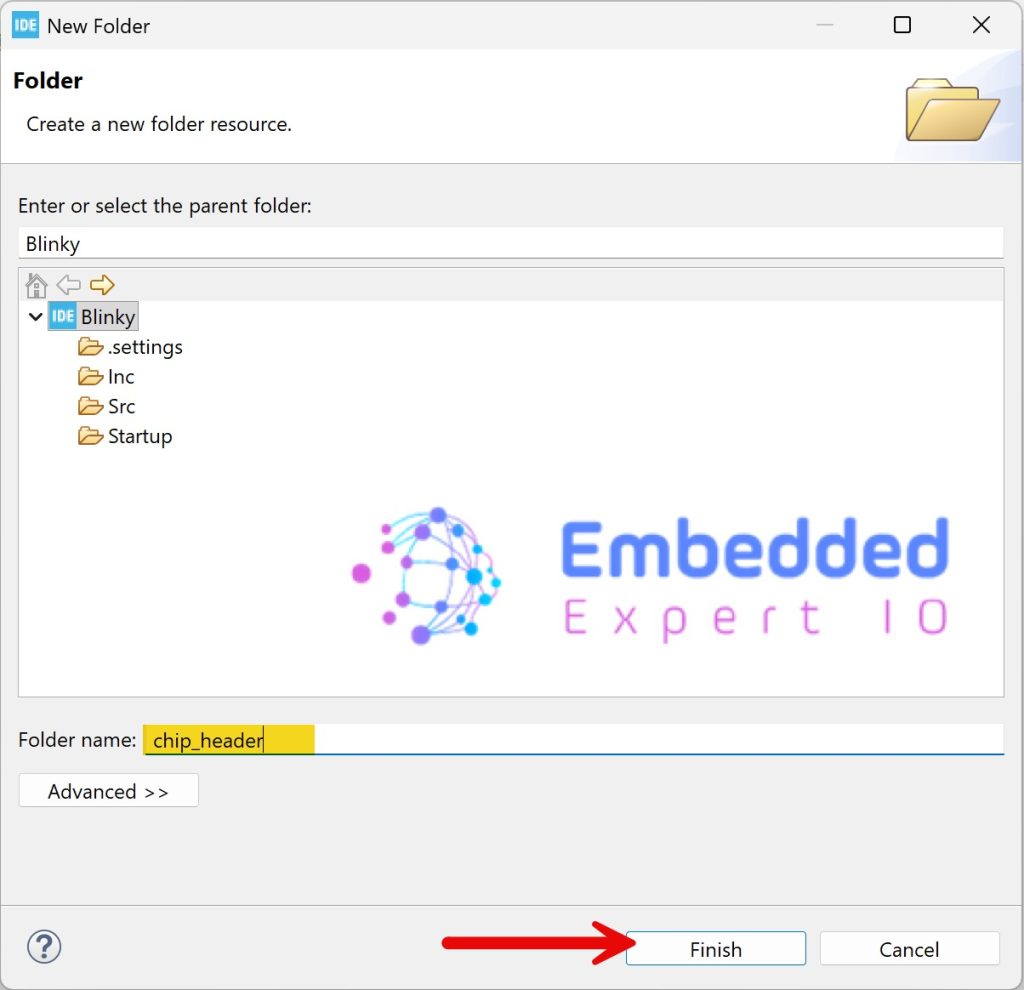
From the project explorer, right click on the project name, select new and select folder:
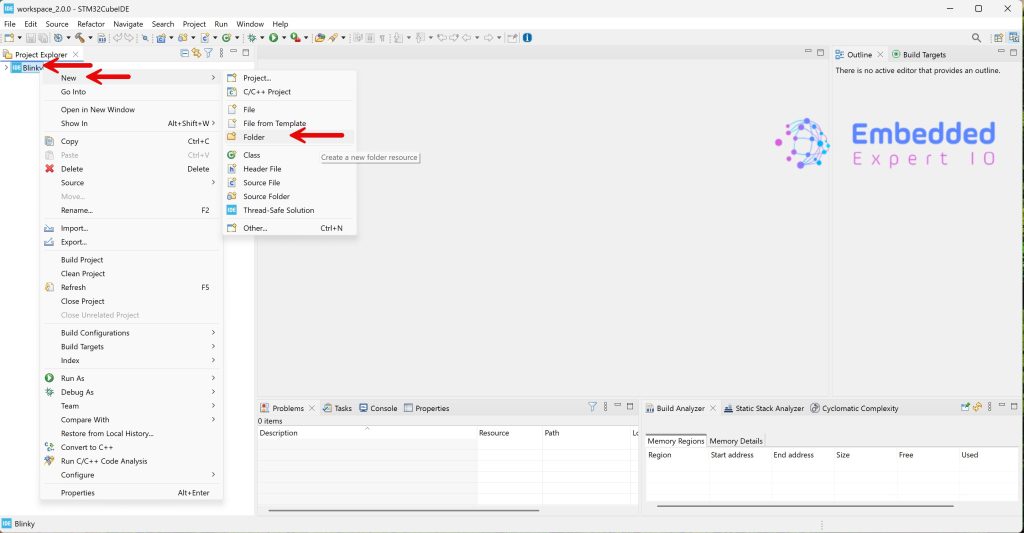
Name the folder as chip_header and click on finish:
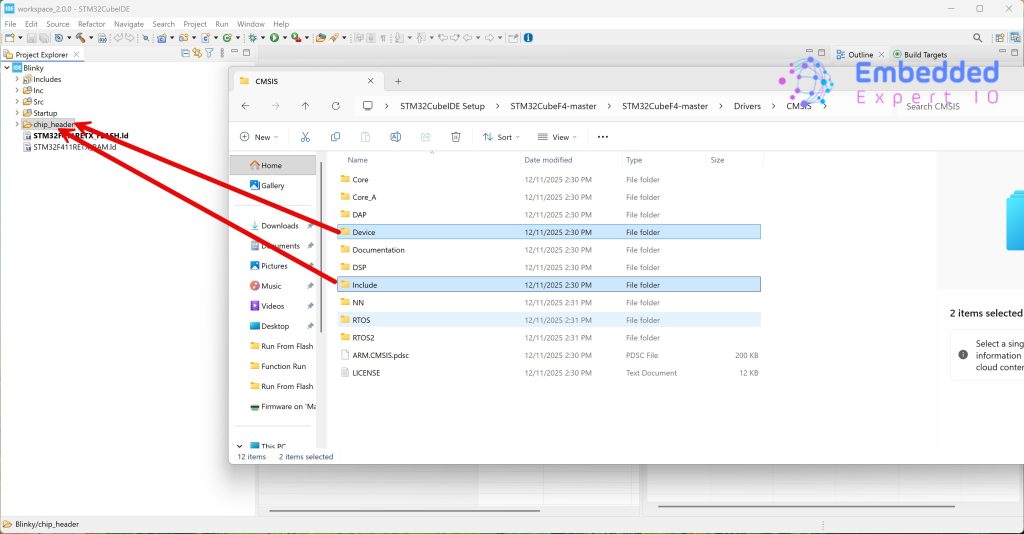
Now, within the firmware folder, go to Drivers/CMSIS and simply drag and drop Device and Include folders to chip_header folder:
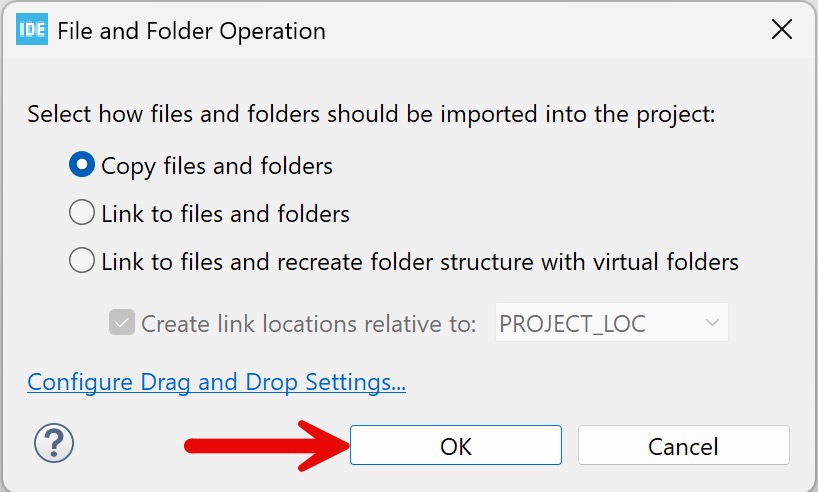
This window will pop-up:
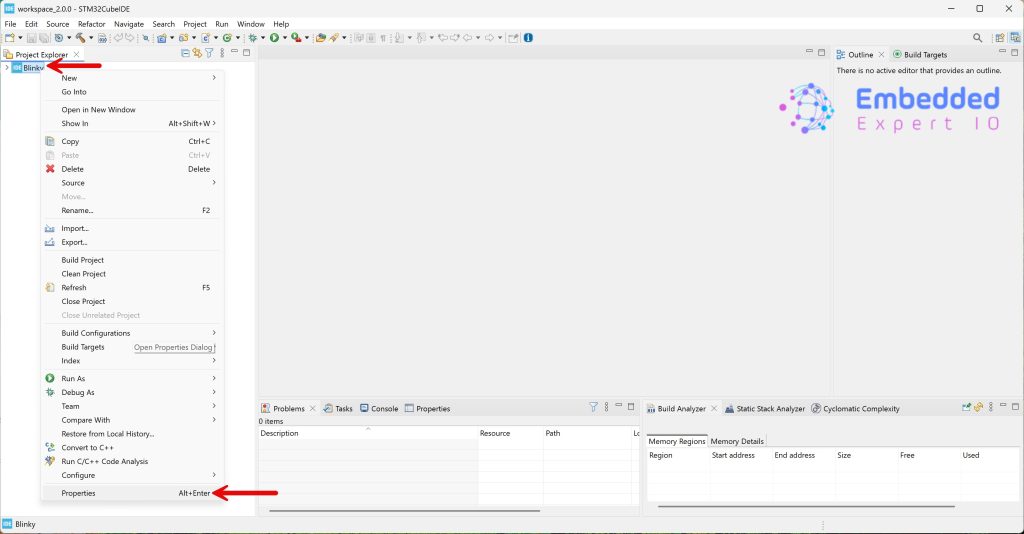
After copying the files, the path of those folder shall be added to the project. To do so, right click on the project name, and select properties:
Then, go to C/C++ General and select path and symbols:
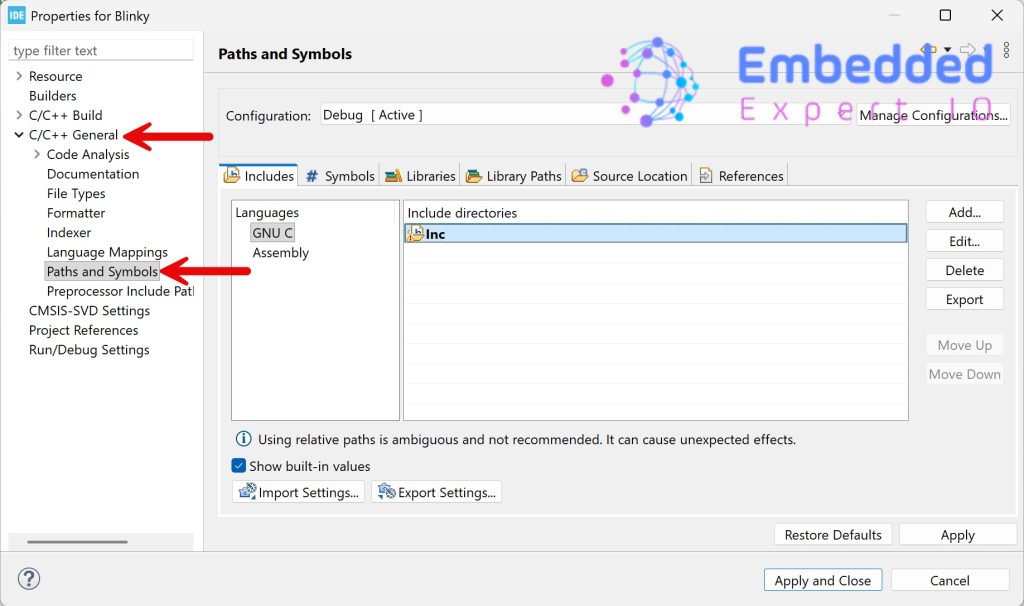
Remove everything within include directories and add as shown in the figure below:
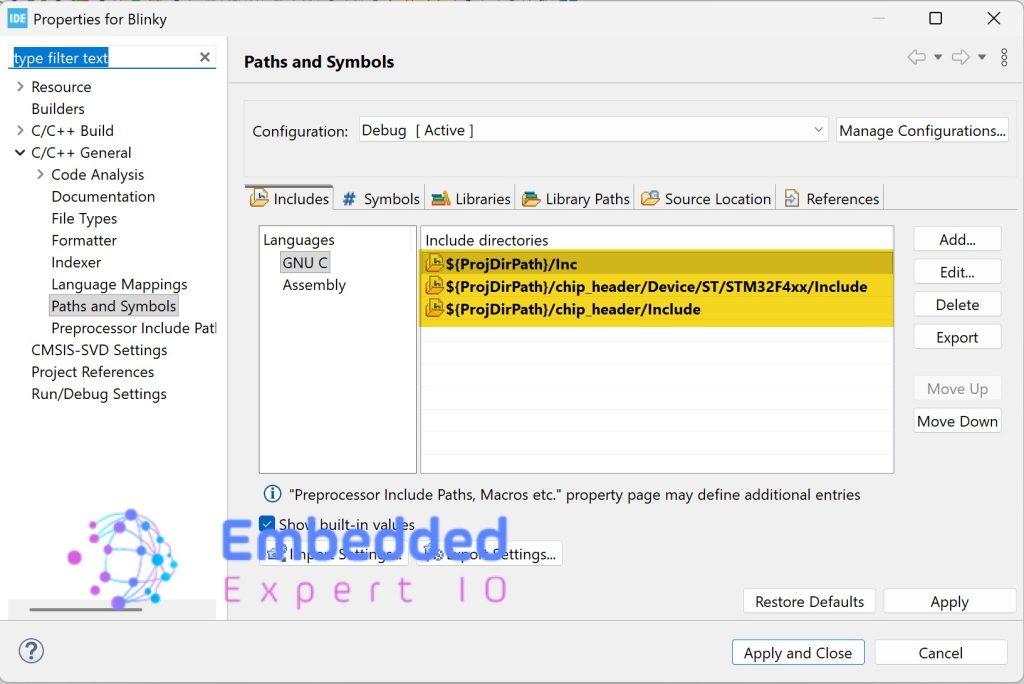
${ProjDirPath}/Inc
${ProjDirPath}/chip_header/Device/ST/STM32F4xx/Include
${ProjDirPath}/chip_header/Include
Now, head to next window which is Symbols and add the following:
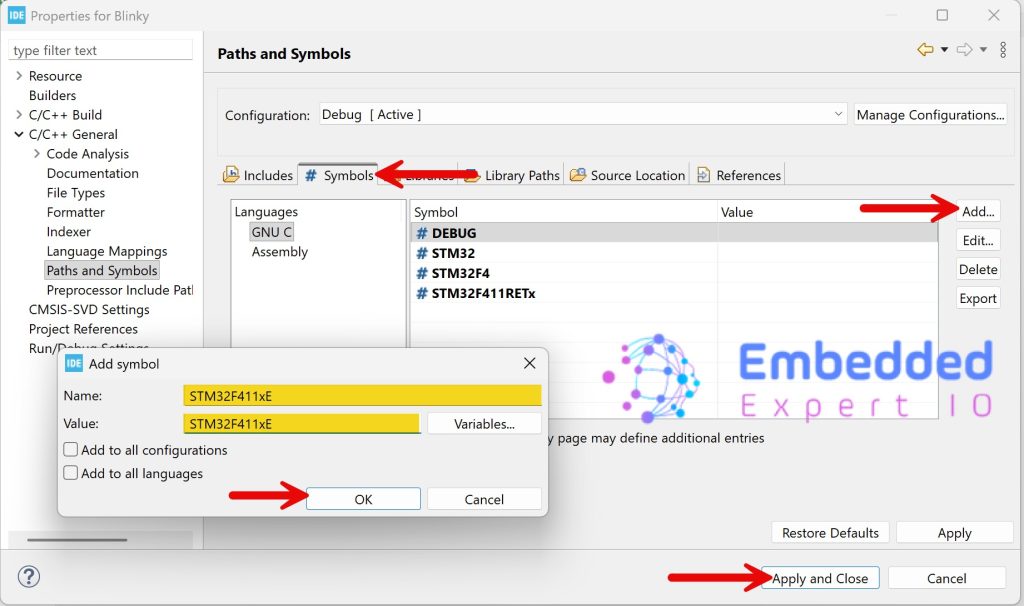
STM32F411xE
Now, STM32CubeIDE is ready for bare metal programing for STM32F411RE.
Enjoy this and happy coding 😉

Add Comment