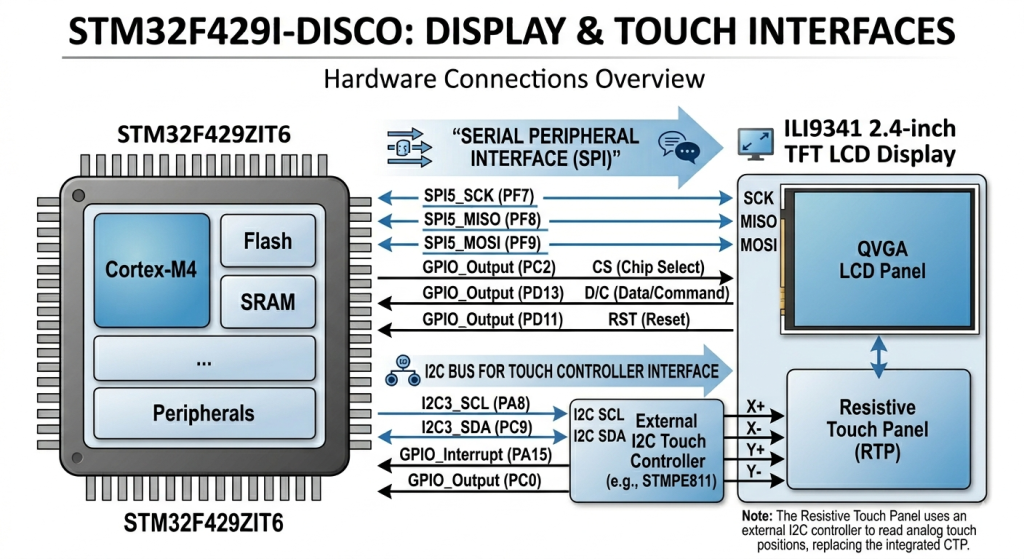
In Part 5, we transition from hardware configuration to data acquisition by implementing the logic required to extract precise X and Y coordinates from the STMPE811. We will explore how to poll the internal FIFO buffer and convert raw analog readings into meaningful screen positions for your user interface.
In this guide, we shall cover the following:
- Header file modification.
- Source file modification.
- Main code.
- Results.
1. Header File Modification:
Open STMPE811.h header file and add the following the define statements as follows:
#define Touch_XMIN 						390
#define Touch_YMIN 						359
#define Touch_XMAX 						3830
#define Touch_YMAX 						3895
#define Touch_WIDTH 					(Touch_XMAX - Touch_XMIN)
#define Touch_HEIGHT 					(Touch_YMAX - Touch_YMIN)
The Touch minimum and maximum values has been obtained without mapping the coordinates. This will be discussed in the source part of this guide.
Next, declare the following function:
TouchDetect_t isTouched(void);
This function will return 1 (Touched) when there is touch presented.
Next, declare the function that will read the touch values as follows:
void getTouchValue(uint16_t *X, uint16_t *Y);
This function retrieves the current 12-bit touch coordinates by reading the STMPE811 FIFO via I2C and storing the resulting X and Y values into the provided memory addresses.
Thats all for the header file.
2. Source File Modification:
Open STMPE811.c source file.
After the declaration of read/write functions helper function, declare the following function:
static uint16_t map(uint16_t x, uint16_t in_min, uint16_t in_max, uint16_t out_min, uint16_t out_max)
{
	  return (x - in_min) * (out_max - out_min + 1) / (in_max - in_min + 1) + out_min;
}
This function shall map the raw touch data to represent the area being touched on the display.
Next, the isTouched function:
ouchDetect_t isTouched(void)
{
    uint8_t value = 0;

    STMPE811_ReadReg(STMPE811_REG_TSC_CTRL, &value);

    value &= STMPE811_TS_CTRL_STATUS;

    if(value == STMPE811_TS_CTRL_STATUS)
    {
        STMPE811_ReadReg(STMPE811_REG_FIFO_SIZE, &value);

        if(value > 0)
        {
            return touched;
        }
    }
    else
    {
        /* Reset FIFO */
        STMPE811_WriteReg(STMPE811_REG_FIFO_STA, 0x01);
        STMPE811_WriteReg(STMPE811_REG_FIFO_STA, 0x00);
    }

    return no_touch;
}
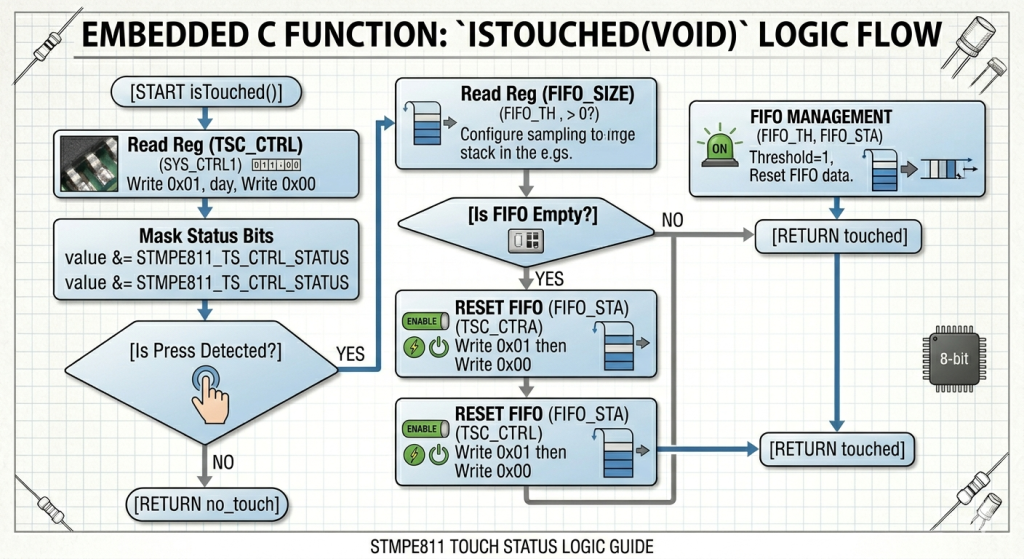
This function checks the hardware status to determine if a valid touch event is currently occurring by verifying two conditions: first, it checks the TSC_CTRL register to see if the touch screen controller detects physical pressure, and second, it confirms that the FIFO buffer actually contains coordinate data. If the screen is not being touched, the function proactively clears the FIFO to flush any stale or “ghost” data, ensuring that only fresh, real-time interactions are reported as a touched state.
Next, getTouchValue function:
void getTouchValue(uint16_t *X, uint16_t *Y)
{
    uint32_t uldataXYZ;
    uint8_t dataXYZ[4];

    uint16_t x,y;

    STMPE811_ReadMulti(STMPE811_REG_TSC_DATA_NON_INC, dataXYZ, 4);

    /* Combine data */
    uldataXYZ = (dataXYZ[0] << 24) |
                (dataXYZ[1] << 16) |
                (dataXYZ[2] << 8)  |
                (dataXYZ[3]);

    x = (uldataXYZ >> 20) & 0x0FFF;
    y = (uldataXYZ >> 8)  & 0x0FFF;

    /* Reset FIFO */
    STMPE811_WriteReg(STMPE811_REG_FIFO_STA, 0x01);

    /* Re-enable FIFO */
    STMPE811_WriteReg(STMPE811_REG_FIFO_STA, 0x00);

    *X=map(x,Touch_XMIN,Touch_XMAX,0,240);
    *Y=map(y,Touch_YMIN,Touch_YMAX,0,320);

}
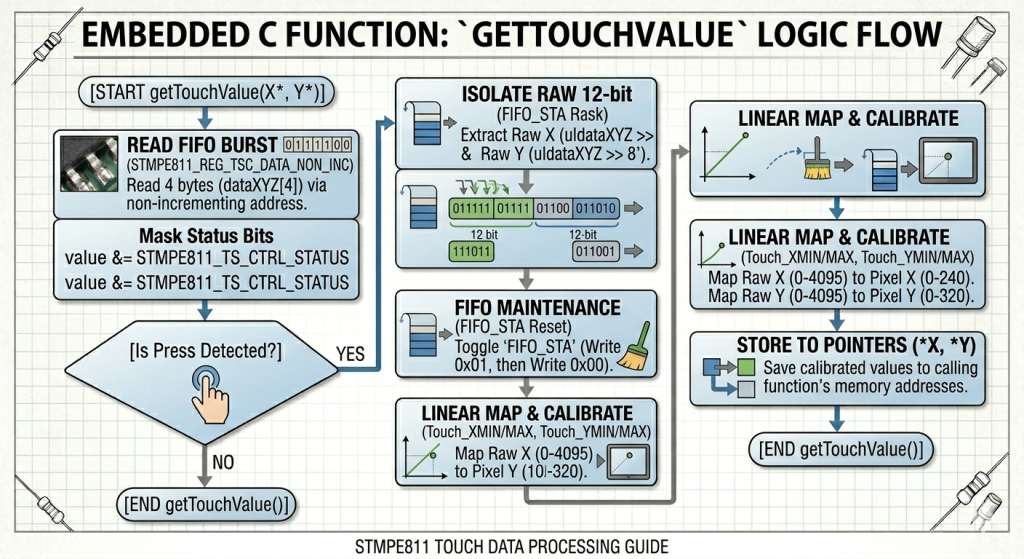
This function extracts and calibrates raw touch data from the STMPE811 by reading a 4-byte burst from the FIFO, which contains the packed X and Y coordinates.
Key Operations
- Bit Manipulation: It reassembles the four bytes into a 32-bit variable (
uldataXYZ) and uses bit-shifting to isolate the two 12-bit values (0–4095 resolution) representing the raw X and Y positions. - FIFO Maintenance: The function toggles the
FIFO_STAregister to flush the buffer after the read, ensuring subsequent calls retrieve real-time data rather than historical samples. - Linear Mapping: Finally, it uses a
map()function to convert the raw analog values into pixel coordinates (0–240 for width, 0–320 for height) based on pre-defined calibration constants (XMIN/XMAX).
Note: To get the maximum and minimum touch values, just need to add the following to the end of the function as follows:
*X=x;
*Y=y;
Please note that you need to comment/delete the function once you get the minimum and maximum values for the touch.
That all for the source file.
3. Main Function:
Open main.c file.
In user code begin PV, declare the following variable:
uint16_t touchState=0;
This will indicate if the screen has been touched or not.
Next, declare the following variables:
uint16_t xTouch,yTouch;
These will hold the touch values.
Next, in while 1 loop:
touchState=isTouched();
if(touchState==touched)
{
  getTouchValue(&xTouch,&yTouch);

}


HAL_Delay(50);
Logic Execution Flow
- Detection Polling: The code first calls
isTouched(), which performs the low-level register checks to see if the resistive panel is physically compressed and if the FIFO contains data. - Conditional Execution: Only if a valid touch is confirmed (
touchState == touched) does the program proceed to callgetTouchValue(). This prevents the CPU from performing unnecessary I2C burst reads or coordinate math when the screen is idle. - Data Extraction: Within the
ifblock, the raw 12-bit data is fetched, the FIFO is cleared, and the results are mapped to your 240×320 pixel grid, storing them in the variablesxTouchandyTouch. - Sampling Rate Control: The
HAL_Delay(50)at the end creates a 20 Hz sampling rate. This is a common practice in embedded UI to prevent “bouncing” or rapid-fire data processing that could lead to erratic cursor movement or multiple unintended clicks.
That all for this guide.
Save, build the project and run it as follows:

4. Results:
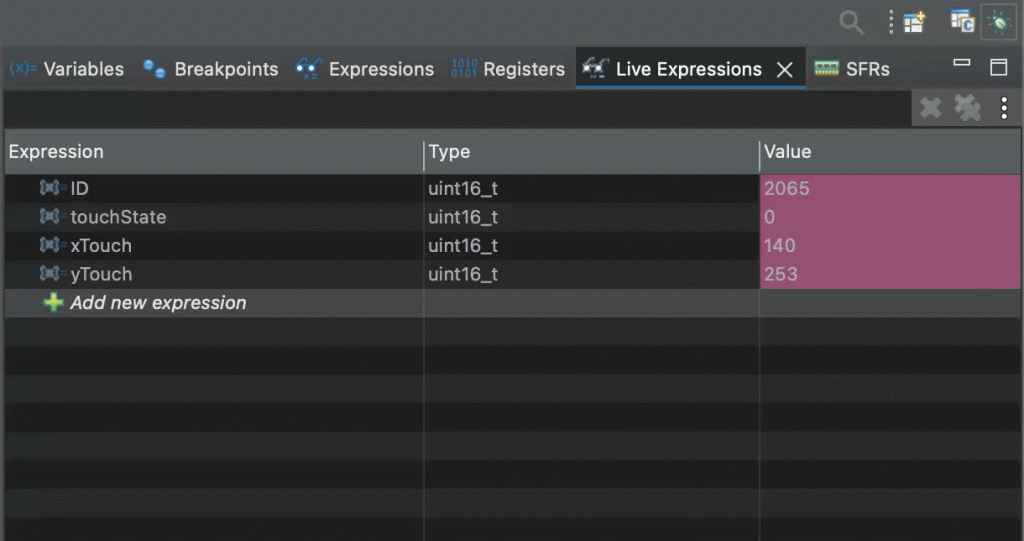
Start a debug session and add ID, xTouch and yTouch variables to the live expression and you should get the following:
Next, we shall add LvGL to the mix and see how things will go from there.
Stay tuned.
Happy coding 😉

Add Comment