

Until now, the timer has only known how to repeat — PWM painting the same waveform over and over, forever. Output Compare is the moment it learns to schedule: instead of an endless wave, we place precisely timed events on the counter’s timeline, flipping a pin at the exact tick we command.
In this guide, we shall cover the following:
- Introduction.
- STM32CubeMX setup.
- Firmware Development.
- Results.
1.1 Introduction:
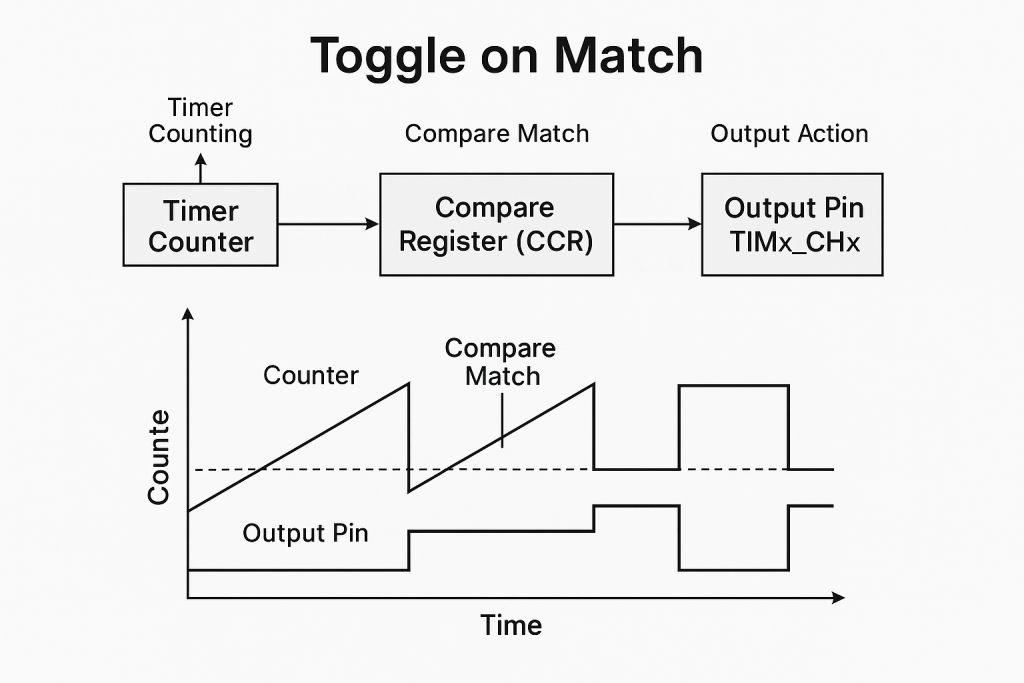
STM32 microcontrollers feature powerful and flexible timers that can be configured for a wide range of applications. One of the most commonly used features of these timers is the Output Compare (OC) mode. In Output Compare mode, the timer continuously counts up (or down) and compares its current value with a predefined value stored in a compare register (CCR – Capture/Compare Register). When the timer’s counter matches the compare value, a configurable output event occurs on a corresponding output pin, such as setting the pin high, clearing it low, toggling its state, or simply generating an internal event without affecting a pin.
The Output Compare functionality enables precise event timing without continuous CPU involvement, improving efficiency and reliability in embedded systems. This mechanism is particularly useful when deterministic timing behavior is required, such as generating waveforms, timing control signals, or triggering ADC conversions at precise intervals.
Among the different actions that can be taken upon a match, Toggle on Match is one of the most interesting. In this mode, every time the timer counter reaches the compare value, the output pin automatically toggles its state (from HIGH to LOW or LOW to HIGH). This simple behavior can be extremely powerful, allowing the generation of square waves or clock signals without using any CPU resources once configured. The toggle mode is especially beneficial for creating precise frequency signals — by adjusting the timer’s prescaler, auto-reload, and compare value, a wide range of output frequencies can be generated with minimal overhead.
For example, if the timer is set to count continuously and the Output Compare mode is set to “toggle on match,” the output will change its state every time the counter matches the compare value, effectively creating a signal with a frequency that depends on the timer’s clock settings and the compare value. This is very useful for applications such as generating clock signals for peripherals, simulating square waveforms, or blinking LEDs at a precise and stable rate.
1.2 Applications of Output Compare Mode
- Signal Generation (Square Waves and Clocks)
By configuring Output Compare to “Toggle on Match,” STM32 timers can generate clean and stable square waves for use as clocks for other devices, audio signals, or simple waveform generation. - Precise Event Scheduling
Output Compare can schedule specific events to happen at precise timer counts. For instance, you can trigger an ADC conversion, start a communication frame, or toggle an external device exactly when needed. - Pulse Generation
In automation and communication systems, short pulses may be needed at very precise intervals. Using Output Compare, the timer can generate a single pulse or a train of pulses with exact timing. - Motor Control
When combined with PWM (Pulse Width Modulation) applications, Output Compare can help to control motor speed or position by accurately generating switching signals. - Communication Protocols
Some protocols require strict timing for transmitting or receiving signals. Output Compare can automate timing-critical toggles, improving the reliability of such communications. - LED Blinking with Accurate Timing
Instead of using blocking delays or software counters, you can set up a timer channel in toggle mode to blink an LED at a precise rate without CPU load.
2. STM32CubeMX Setup:
We shall continue from the previous guide from here.
From timers, select TIM2 as set Channel 1 as Output Compare CH1 as follows:
- Set the Prescaler to 16000-1.
- Set Counter Mode to Up.
- Set the counter period to 1000-1
- From Output Compare Channel 1, set the mode toggle on match.
- Set PA5 as TIM2_CH1.
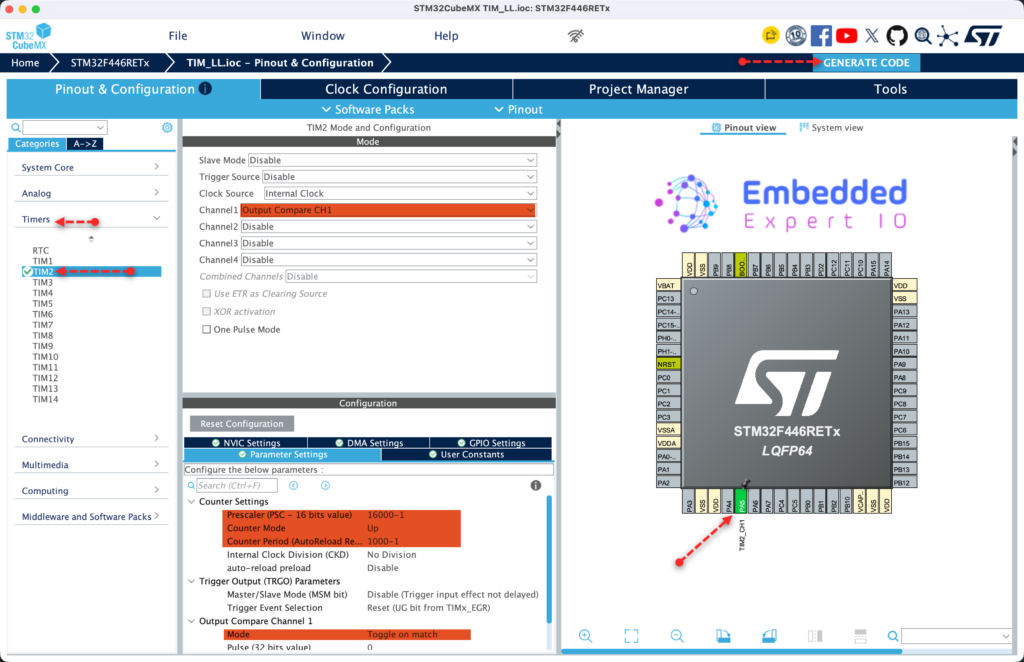
Finally, click on Generate the code.
Thats all for the configuration.
3. Firmware Development:
Open the project in STM32CubeIDE then open tim.h
In user code begin Prototypes, declare the following function:
void OC_Start(TIM_TypeDef *TIMx, uint8_t channel);
The function shall start the channel that has been set as output compare. The function shall take the following parameters:
- Instant to the timer to be used which is TIM2 in this guide.
- Channel to be enabled, channel 1 in this guide.
Next, declare the following function:
void OC_SetCompare(TIM_TypeDef *TIMx, uint8_t channel, uint32_t compare);
This function shall set at which of CNT value to trigger the output which is being passed as compare.
That all for the header file
Next, open tim.c
In MX_TIM2_Init function, we need to add the following:
In USER CODE BEGIN TIM2_Init 2, add the following:
  TIM_InitStruct.Autoreload = 1000;
  LL_TIM_Init(TIM2, &TIM_InitStruct);
This will ensure to set the correct timer period.
Next, in user code begin 1, after the set duty cycle function:
void OC_Start(TIM_TypeDef *TIMx, uint8_t channel)
{
    switch (channel)
    {
        case 1: LL_TIM_CC_EnableChannel(TIMx, LL_TIM_CHANNEL_CH1); break;
        case 2: LL_TIM_CC_EnableChannel(TIMx, LL_TIM_CHANNEL_CH2); break;
        case 3: LL_TIM_CC_EnableChannel(TIMx, LL_TIM_CHANNEL_CH3); break;
        case 4: LL_TIM_CC_EnableChannel(TIMx, LL_TIM_CHANNEL_CH4); break;
        default: return;
    }

    LL_TIM_EnableCounter(TIMx);
    LL_TIM_GenerateEvent_UPDATE(TIMx);
}
The function that will start the output compare mode, it as simple as:
- Enable the channel.
- Enable the timer.
- Generate update even to update the ARR and PSC register.
Next, for setting the compare value:
void OC_SetCompare(TIM_TypeDef *TIMx, uint8_t channel, uint32_t compare)
{
    switch (channel)
    {
        case 1: LL_TIM_OC_SetCompareCH1(TIMx, compare); break;
        case 2: LL_TIM_OC_SetCompareCH2(TIMx, compare); break;
        case 3: LL_TIM_OC_SetCompareCH3(TIMx, compare); break;
        case 4: LL_TIM_OC_SetCompareCH4(TIMx, compare); break;
        default: return;
    }
}
It will set the compare value for the desired channel.
Next, in main.c, in user code begin 2:
  OC_SetCompare(TIM2, 1, 0);
  OC_Start(TIM2, 1);
Set the compare value to zero and launch the timer.
That’s all for the firmware development.
Thats all for the firmware.
Save, build and run the project on your board.

You may download the project from here.
4. Results:
You should see the onboard LED toggle each second as shown in this video
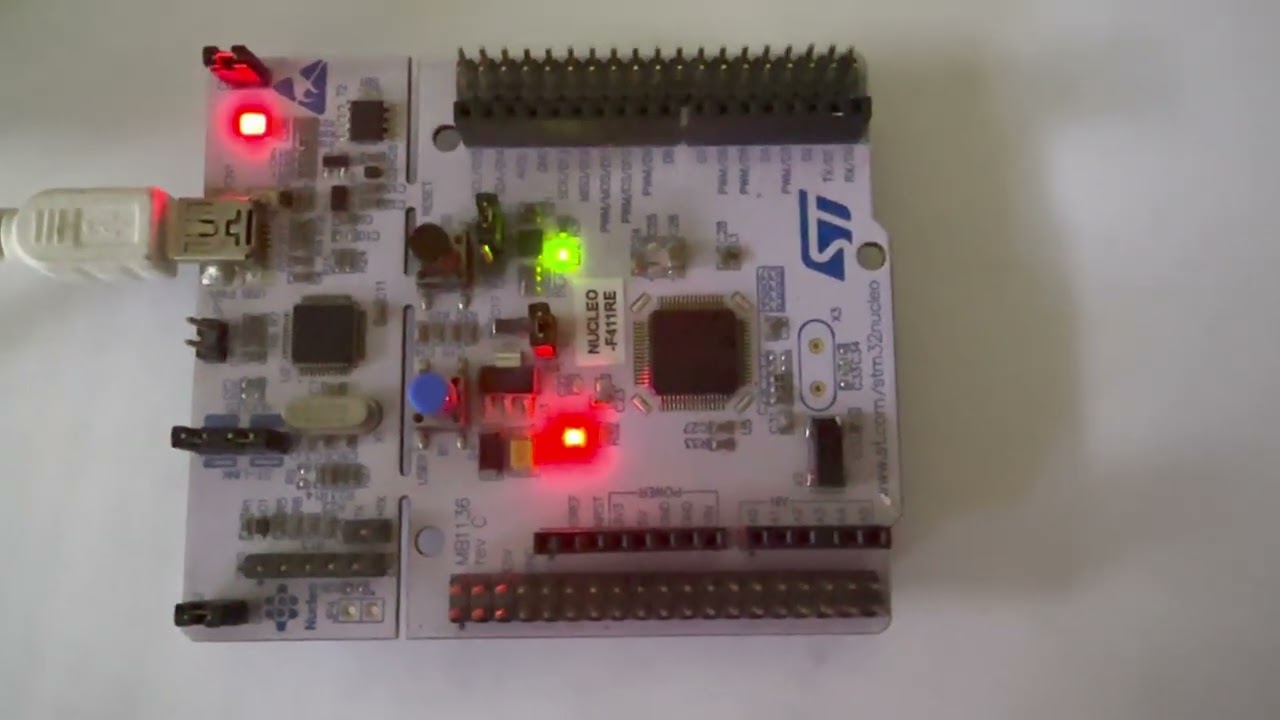
LED toggle using DMA and timer
Hosted by YouTube. Playing may use YouTube cookies. Privacy details
This is totally by hardware, no interrupt, nothing.
Stay tuned.
Happy coding 😉
Discussion